Getting Started with LLM Gateway in 5 Minutes
A step-by-step guide to making your first LLM API request through LLM Gateway — from signup to seeing results in your dashboard.
By LLM Gateway
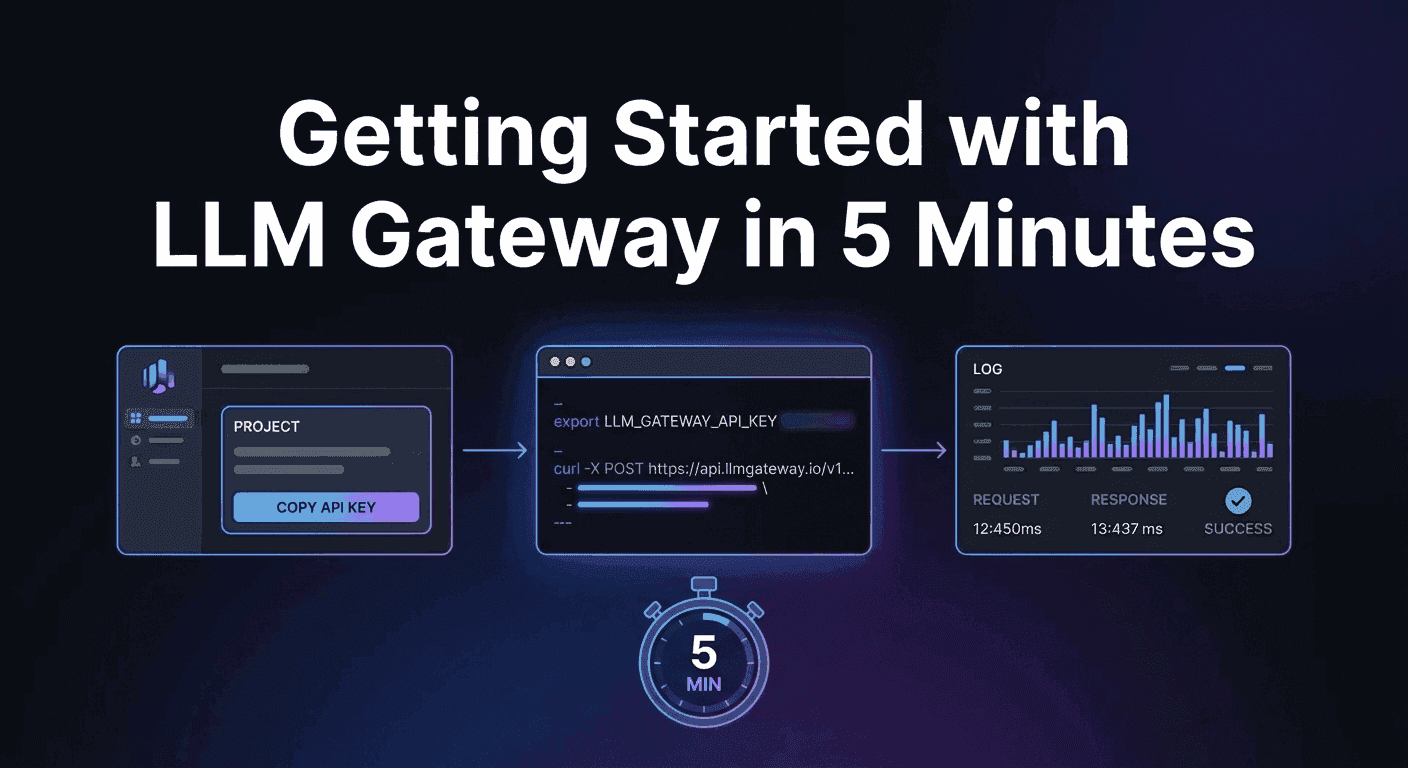
This guide walks you through making your first LLM request through LLM Gateway. By the end, you'll have a working API key and a completed request visible in your dashboard.
Step 1: Get an API Key
- Sign in to the dashboard.
- Create a new Project.
- Copy the API key.
- Export it in your shell or add it to a
.envfile:
1export LLM_GATEWAY_API_KEY="llmgtwy_XXXXXXXXXXXXXXXX"1export LLM_GATEWAY_API_KEY="llmgtwy_XXXXXXXXXXXXXXXX"Step 2: Make Your First Request
LLM Gateway uses an OpenAI-compatible API. Point your requests to https://api.llmgateway.io/v1 and you're done.
Using curl
1curl -X POST https://api.llmgateway.io/v1/chat/completions \2 -H "Content-Type: application/json" \3 -H "Authorization: Bearer $LLM_GATEWAY_API_KEY" \4 -d '{5 "model": "gpt-4o",6 "messages": [7 {"role": "user", "content": "What is an LLM gateway?"}8 ]9 }'1curl -X POST https://api.llmgateway.io/v1/chat/completions \2 -H "Content-Type: application/json" \3 -H "Authorization: Bearer $LLM_GATEWAY_API_KEY" \4 -d '{5 "model": "gpt-4o",6 "messages": [7 {"role": "user", "content": "What is an LLM gateway?"}8 ]9 }'Using Node.js (OpenAI SDK)
1import OpenAI from "openai";2
3const client = new OpenAI({4  baseURL: "https://api.llmgateway.io/v1",5  apiKey: process.env.LLM_GATEWAY_API_KEY,6});7
8const response = await client.chat.completions.create({9  model: "gpt-4o",10  messages: [{ role: "user", content: "What is an LLM gateway?" }],11});12
13console.log(response.choices[0].message.content);1import OpenAI from "openai";2
3const client = new OpenAI({4 baseURL: "https://api.llmgateway.io/v1",5 apiKey: process.env.LLM_GATEWAY_API_KEY,6});7
8const response = await client.chat.completions.create({9 model: "gpt-4o",10 messages: [{ role: "user", content: "What is an LLM gateway?" }],11});12
13console.log(response.choices[0].message.content);Using Python
1import requests2import os3
4response = requests.post(5    "https://api.llmgateway.io/v1/chat/completions",6    headers={7        "Content-Type": "application/json",8        "Authorization": f"Bearer {os.getenv('LLM_GATEWAY_API_KEY')}",9    },10    json={11        "model": "gpt-4o",12        "messages": [13            {"role": "user", "content": "What is an LLM gateway?"}14        ],15    },16)17
18response.raise_for_status()19print(response.json()["choices"][0]["message"]["content"])1import requests2import os3
4response = requests.post(5 "https://api.llmgateway.io/v1/chat/completions",6 headers={7 "Content-Type": "application/json",8 "Authorization": f"Bearer {os.getenv('LLM_GATEWAY_API_KEY')}",9 },10 json={11 "model": "gpt-4o",12 "messages": [13 {"role": "user", "content": "What is an LLM gateway?"}14 ],15 },16)17
18response.raise_for_status()19print(response.json()["choices"][0]["message"]["content"])Using the AI SDK
If you're using the Vercel AI SDK, you can use our native provider:
1import { llmgateway } from "@llmgateway/ai-sdk-provider";2import { generateText } from "ai";3
4const { text } = await generateText({5 model: llmgateway("gpt-4o"),6 prompt: "What is an LLM gateway?",7});1import { llmgateway } from "@llmgateway/ai-sdk-provider";2import { generateText } from "ai";3
4const { text } = await generateText({5 model: llmgateway("gpt-4o"),6 prompt: "What is an LLM gateway?",7});Or use the OpenAI-compatible adapter:
1import { createOpenAI } from "@ai-sdk/openai";2
3const llmgateway = createOpenAI({4 baseURL: "https://api.llmgateway.io/v1",5 apiKey: process.env.LLM_GATEWAY_API_KEY!,6});1import { createOpenAI } from "@ai-sdk/openai";2
3const llmgateway = createOpenAI({4 baseURL: "https://api.llmgateway.io/v1",5 apiKey: process.env.LLM_GATEWAY_API_KEY!,6});One API key for every model.
Route to 200+ models with automatic failover, caching, and real-time cost analytics. Free to start — no credit card required.
Step 3: Enable Streaming
Pass stream: true to any request and the gateway will proxy the event stream unchanged:
1curl -X POST https://api.llmgateway.io/v1/chat/completions \2 -H "Content-Type: application/json" \3 -H "Authorization: Bearer $LLM_GATEWAY_API_KEY" \4 -d '{5 "model": "gpt-4o",6 "stream": true,7 "messages": [8 {"role": "user", "content": "Write a short poem about APIs"}9 ]10 }'1curl -X POST https://api.llmgateway.io/v1/chat/completions \2 -H "Content-Type: application/json" \3 -H "Authorization: Bearer $LLM_GATEWAY_API_KEY" \4 -d '{5 "model": "gpt-4o",6 "stream": true,7 "messages": [8 {"role": "user", "content": "Write a short poem about APIs"}9 ]10 }'Step 4: Monitor in the Dashboard
Every call appears in the dashboard with latency, cost, and provider breakdown. Go back to your project to see your request logged with the model used, token counts, cost, and response time.
Step 5: Try a Different Provider
The best part of using a gateway: switching providers is a one-line change. Try the same request with a different model:
1# Anthropic2"model": "anthropic/claude-haiku-4-5"3
4# Google5"model": "google-ai-studio/gemini-2.5-flash"1# Anthropic2"model": "anthropic/claude-haiku-4-5"3
4# Google5"model": "google-ai-studio/gemini-2.5-flash"Same API, same code. Just a different model string.
What's Next
- Try models in the Playground — test any model with a chat interface before integrating
- Browse all models — compare pricing, context windows, and capabilities
- Read the full docs — streaming, tool calling, structured output, and more
- Join our Discord — get help and share what you're building
One API key for every model.
Route to 200+ models with automatic failover, caching, and real-time cost analytics. Free to start — no credit card required.