OpenCode Integration
Use OpenCode's built-in LLM Gateway provider, choose a model, and verify your connection with a coding task.
OpenCode is an open-source coding agent for your terminal, desktop, and editor. LLM Gateway is a built-in provider, with usage tracked in your gateway dashboard.
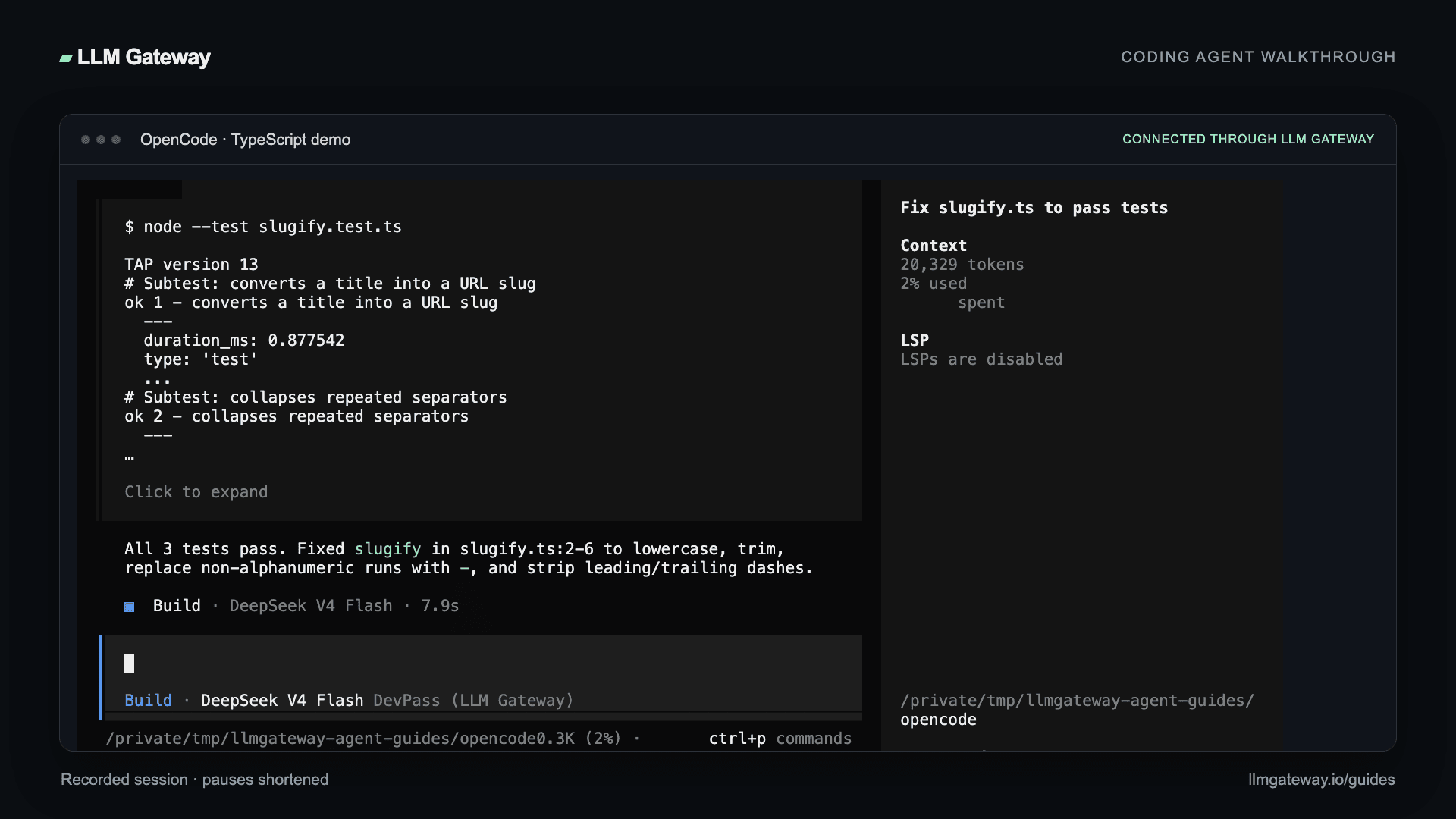
This walkthrough was verified with OpenCode 1.18.27, including a file edit and a successful test run.
Video walkthrough
Install
Use the OpenCode download page for your platform, or install the CLI:
1pnpm add -g opencode-ai2opencode --version1pnpm add -g opencode-ai2opencode --versionConnect your API key
Start OpenCode in your project:
1opencode1opencodeRun /connect, search for LLM Gateway, and enter a key from your LLM Gateway dashboard. OpenCode saves credentials for later sessions.
Open /models to choose a model. Browse the live catalogue for current capabilities and pricing.
Using DevPass? Select a canonical model ID without an upstream provider prefix. Provider-pinned routing is not available on coding plans.
Configure with an environment variable
For scripts or a project-specific configuration, set your key:
1export LLMGATEWAY_API_KEY="your_api_key"1export LLMGATEWAY_API_KEY="your_api_key"Add an opencode.json in the project root:
1{2 "provider": {3 "llmgateway": {4 "options": {5 "apiKey": "{env:LLMGATEWAY_API_KEY}"6 }7 }8 },9 "model": "llmgateway/deepseek-v4-flash"10}1{2 "provider": {3 "llmgateway": {4 "options": {5 "apiKey": "{env:LLMGATEWAY_API_KEY}"6 }7 }8 },9 "model": "llmgateway/deepseek-v4-flash"10}llmgateway is OpenCode's provider ID. The rest of the model string is the gateway model ID. The example uses the model tested in this walkthrough; replace it with one from the live catalogue.
The provider already defines the gateway endpoint, so this configuration only supplies the key and model. For a custom endpoint override, use provider.llmgateway.options.baseURL with https://api.llmgateway.io/v1.
Verify a coding task
Ask OpenCode to fix a specific file and run its tests:
1Fix slugify.ts so all tests pass. Read the files, make the smallest fix,2run node --test slugify.test.ts, and summarize. Do not edit the tests.1Fix slugify.ts so all tests pass. Read the files, make the smallest fix,2run node --test slugify.test.ts, and summarize. Do not edit the tests.Review the diff, approve commands as needed, and check the test output. Then confirm the request's model, tokens, and cost in your dashboard.
You can also run a one-shot task:
1opencode run --model llmgateway/deepseek-v4-flash "Explain this project"1opencode run --model llmgateway/deepseek-v4-flash "Explain this project"Switching models
Use /models in the terminal, or list the provider's available IDs:
1opencode models llmgateway1opencode models llmgatewayCopy an exact ID from that output into the model field or the --model option. Canonical IDs let the gateway choose the upstream provider; provider-prefixed IDs select a specific deployment when your account supports pinned routing.
Troubleshooting
Provider not found
Check opencode --version and run opencode models llmgateway. The verified version uses llmgateway; older instructions referring to llmgateway-providers may not match your installed release.
Authentication error
Check that the key is active and available in the shell that launches OpenCode. The environment reference uses OpenCode's {env:VARIABLE_NAME} syntax.
Model missing
Refresh the model picker or restart OpenCode. Copy the exact ID from opencode models llmgateway and compare it with the gateway catalogue.
See OpenCode's provider documentation for additional configuration options.