Find Idle LLM Projects and Clean Them Up in One Place
Projects pile up: a prototype from March, a hackathon demo, a staging copy nobody calls. LLM Gateway's new organization Projects page shows every project's traffic, spend and last activity side by side, filters out idle and never-used projects, and edits or archives several projects at once.
By LLM Gateway
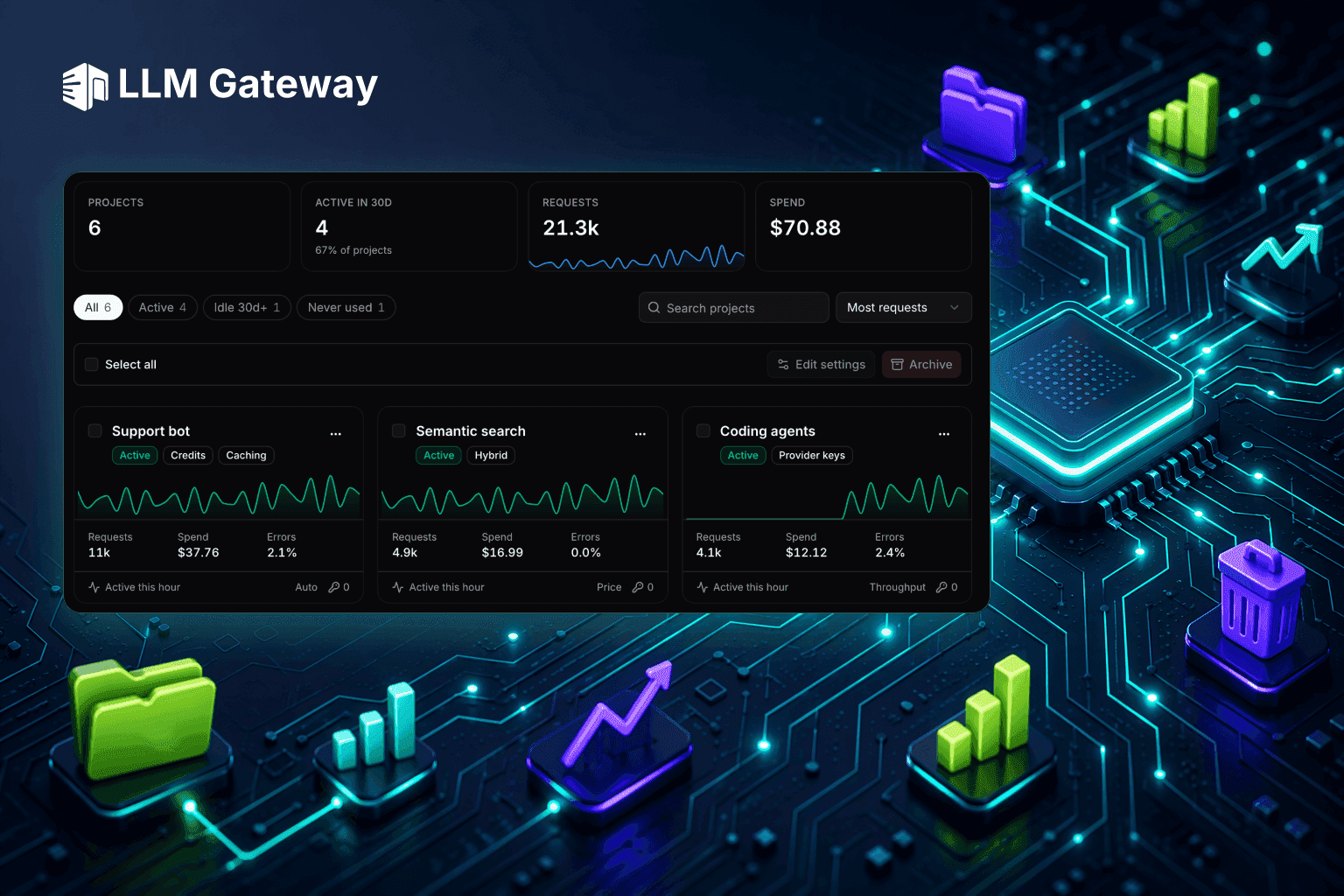
Projects are cheap to create, so they pile up. A prototype from the spring, a hackathon demo, a staging copy of production, the integration a contractor set up and left. Each one keeps its API keys alive, and the only way to find out which are still in use was to open each project's dashboard in turn.
LLM Gateway now has an organization-level Projects page that answers that question on one screen: which projects are busy, which are idle, and what each one costs. From the same page you can change settings on several projects at once, or archive the ones you no longer need.
Project usage at a glance
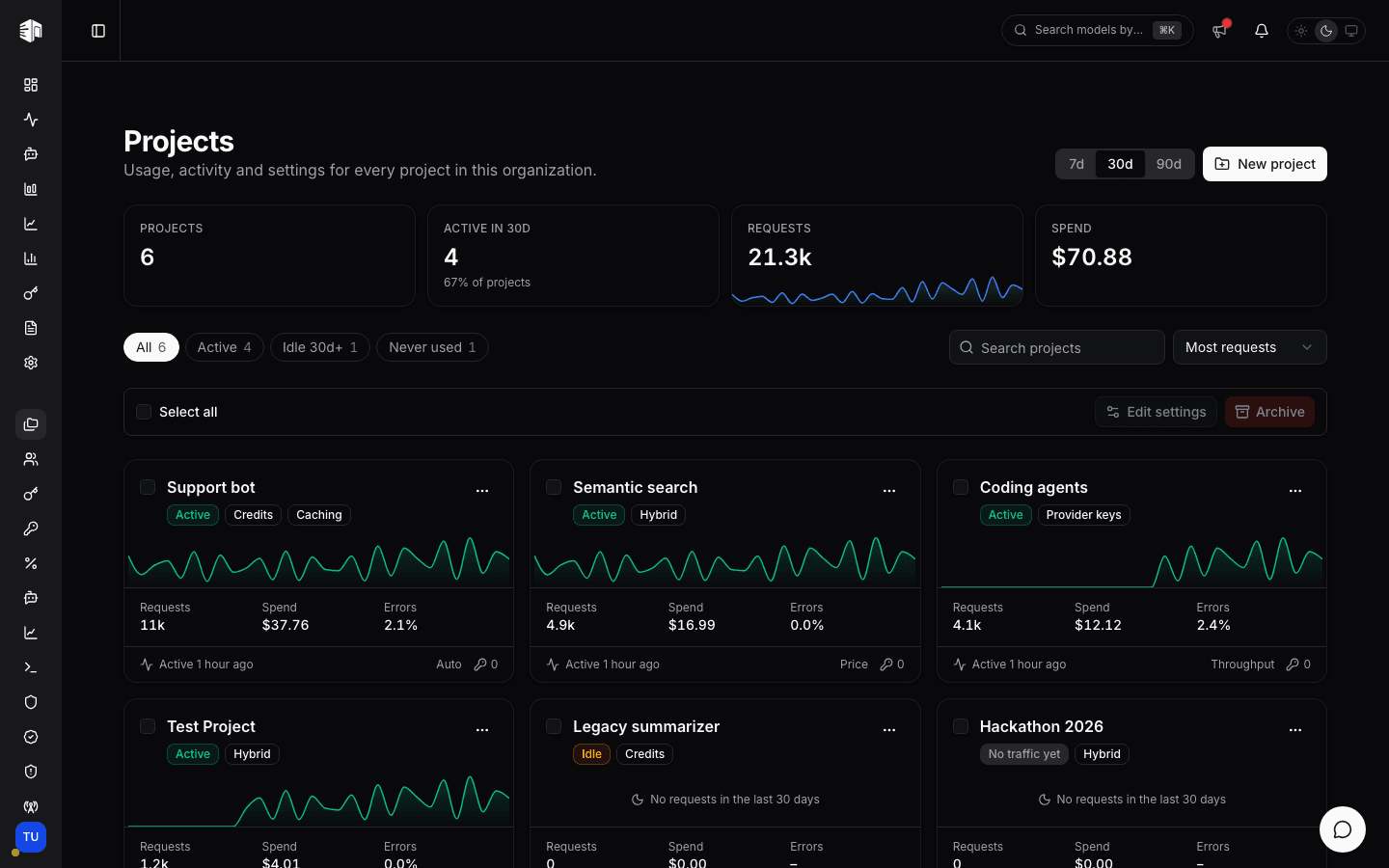
Every project is a card. The sparkline plots requests per day over the period you pick, 7, 30 or 90 days, so a project that went quiet two weeks ago looks different from one that never stopped. Under it:
| Field | What it tells you |
|---|---|
| Requests | Traffic in the period |
| Spend | Cost in the period |
| Errors | Share of requests that failed, highlighted at 5% or more |
| Last active | The most recent hour with traffic, even outside the period |
| Mode | Billing mode: provider keys, credits or hybrid |
| Routing | The project's default routing strategy |
| API keys | How many keys can still call it |
Four tiles at the top add it up across the organization: number of projects, how many were active in the period, total requests with a daily trend, and total spend. The numbers come from the same hourly usage rollups as the project dashboards, so they match what each project shows on its own page.
Find idle and never-used projects
The filters split projects by activity:
- Active: at least one request in the period.
- Idle: older traffic, nothing in the period. These are the candidates for cleanup.
- Never used: created, never called. Usually leftovers from setup or testing.
Each filter shows its count, so "4 active, 1 idle, 1 never used" is visible before you click anything. Search by name or project ID, and sort by requests, spend, most recent activity, name or creation date to bring the expensive or forgotten ones to the top.
Edit settings on several projects at once
Changing a setting on ten projects used to mean ten settings pages. Now you tick the cards, or Select all for the current filter, and click Edit settings.
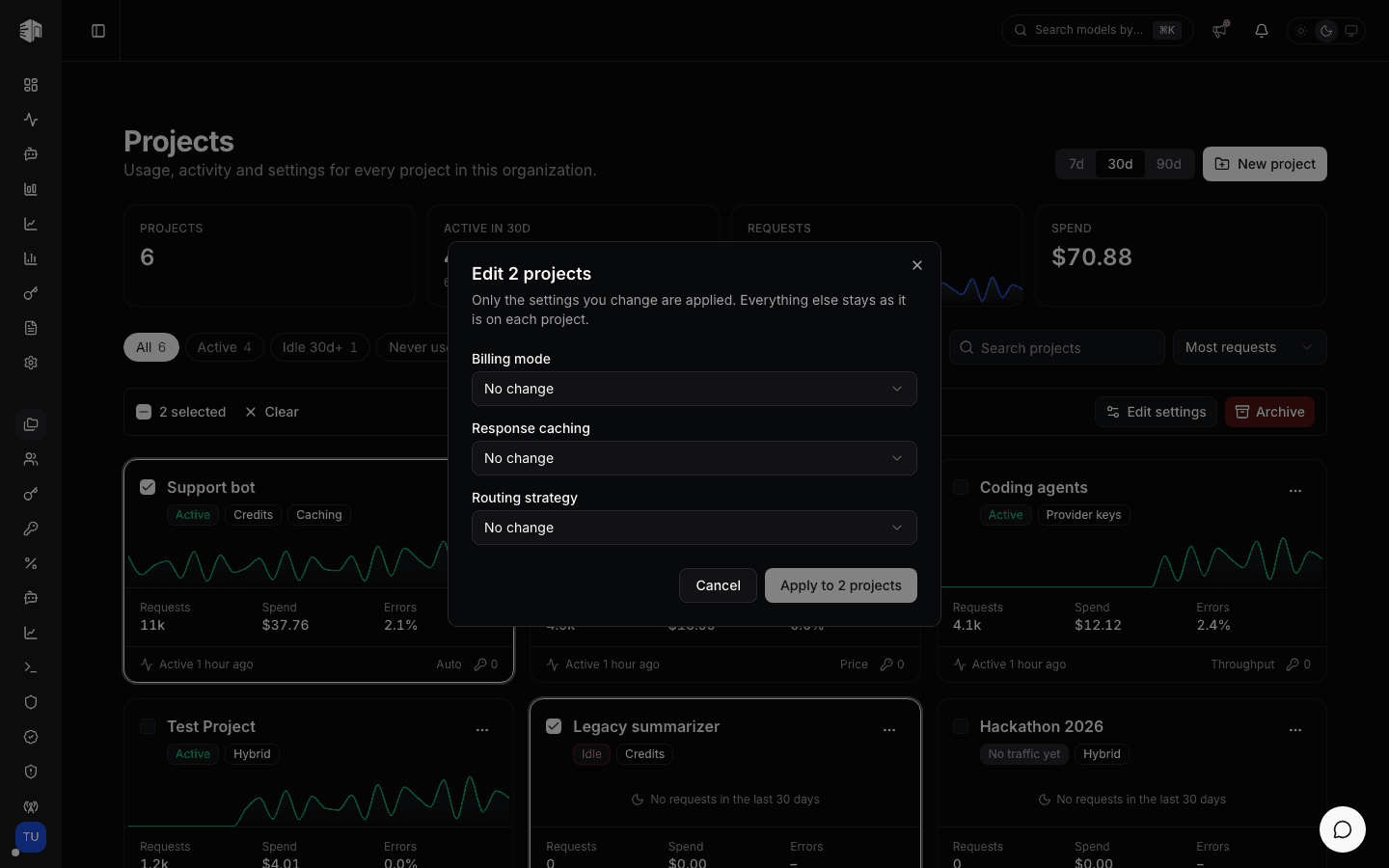
The dialog covers the three settings teams most often align across projects: billing mode, response caching and routing strategy. Every field starts at "No change", and only the fields you set are applied. A project that already matches is skipped rather than rewritten, and the confirmation counts the projects that could not be changed, grouped by reason, for example caching while zero data retention is on. Each successful change is written to the audit log with its old and new value.
Archive what you no longer need
Select the projects and click Archive, or use the menu on a single card. Archived projects leave the project selector and their API keys stop authenticating, which closes the door on credentials nobody is watching. Usage history and logs are kept for reporting and compliance.
Archiving is limited to organization owners. Admins and project admins can edit settings, and developers with project-scoped access see only their granted projects, with usage from their own API keys. For a developer, a project used only through a teammate's key can therefore show as idle or never used.
Get started
The Projects page is available on every plan. Open your dashboard and choose Projects in the organization section of the sidebar.
- Open your dashboard
- Projects page guide
- Audit logs to review every bulk change
Frequently asked questions
- How do I see usage for all LLM Gateway projects at once?
- Open Projects in the organization section of the dashboard sidebar. Every project appears as a card with a daily request sparkline, requests, spend, error rate and last activity for the last 7, 30 or 90 days, with totals for the whole organization at the top.
- How do I find projects that are no longer used?
- Use the Idle filter for projects with older traffic but no requests in the selected period, and Never used for projects that have never served a request. Sorting by recently active puts the longest-quiet projects at the end.
- Can I change settings on several projects at once?
- Yes. Select the projects and click Edit settings to change billing mode, response caching or routing strategy. Only the fields you change are applied, and each successful change is written to the audit log.
- What happens when I archive a project?
- It disappears from the project selector and its API keys stop authenticating. Usage history and logs are kept. Only organization owners can archive projects.