SVG Generation in Lounge Image Studio
Image Studio in Lounge can now generate SVGs. Pick a model with vector output, switch the new format menu to SVG, and get an editable icon, logo, sticker, or illustration that stays sharp at any size and downloads as a .svg file.
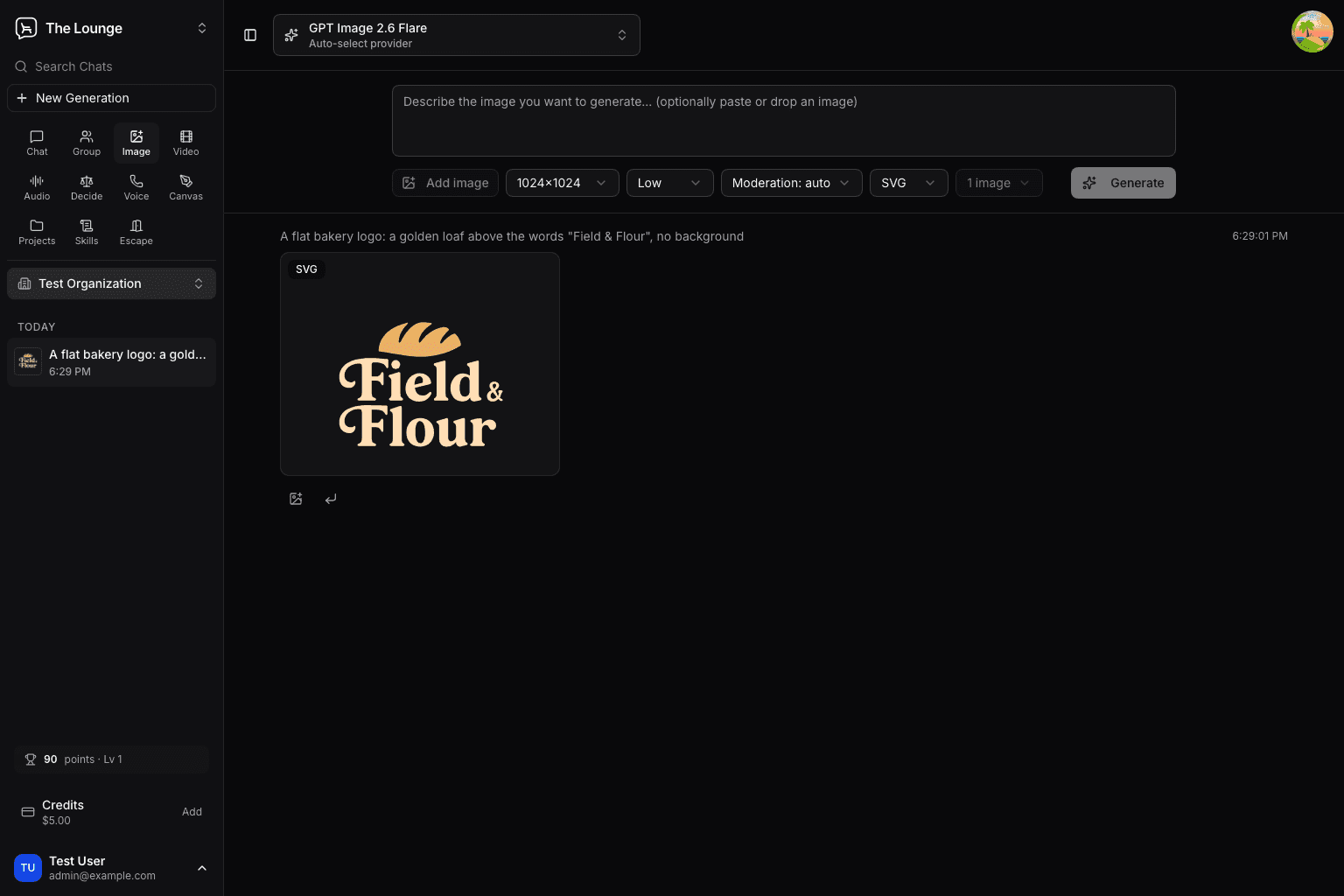
A logo or an icon from an image model usually arrives as a PNG, and turning it into something you can recolor, scale, and ship means a second tool. Image Studio in Lounge now asks for the vector file directly, at lounge.llmgateway.io/image.
Generate an SVG
- Pick an image model with SVG output. The format menu appears only for those models; browse image models on the models page.
- Switch the new format menu from Image to SVG.
- Describe the graphic and click Generate.
The result carries an SVG badge, stays sharp when you zoom in, and downloads
as a .svg file you can open in a design tool or drop into a page. Every
generation is saved to your history like any other image.
- SVG output returns one image per generation, so the image count is fixed at 1.
- SVG takes no reference images; Add image is off while SVG is selected.
- In comparison mode, models without vector output still return a regular image.
Prompts that give clean vectors
Describe a graphic, not a photo: name the style ("flat", "line icon", "two-color"), limit the palette, and say what to leave out ("no background, no gradients"). Put any lettering in quotes.
SVG generations are billed like any other image, at the model's catalogue
price, including the tokens of the model that writes the SVG. The same output
is available through the API with output_format: "svg".