T3 Code Integration
Add an LLM Gateway provider to T3 Code, choose a model, and verify the connection with a real coding task.
T3 Code is an open-source desktop, web, and mobile interface for the coding agents installed on your machine. It does not call models itself: it drives Claude Code, Codex, OpenCode, and other agents. Point one of them at LLM Gateway and every thread you start in T3 Code runs on the gateway model you choose.
This walkthrough was verified with T3 Code 0.1.11 and Claude Code 2.1.329: the agent read a TypeScript project, fixed a function, and ran its tests with glm-5.2 through the gateway.
Video walkthrough
Prerequisites
- Install T3 Code from the download page or with
brew install --cask t3-code. To try the server and web app once without installing, runnpx t3@latest. - Install Claude Code using the official instructions. You do not need an Anthropic login for this setup.
- Create an LLM Gateway API key, or use a DevPass plan key.
Add an LLM Gateway provider
T3 Code calls each configured agent a provider instance. Add a Claude instance that only talks to the gateway:
- Open Settings → Providers and click Add provider.
- Choose Claude, then click Next.
- Set Label to
LLM Gatewayand click Next. - Set the
CLAUDE_CONFIG_DIRpath to~/.claude_llmgateway, then click Add instance.
The separate config directory keeps this instance apart from any Anthropic login and conversation state in your default Claude Code setup. T3 Code's Claude provider documentation covers multiple accounts, launch arguments, and remote machines.
Set the endpoint and key
Select the new instance, scroll to Environment, and add these variables with Add variable:
| Variable | Value |
|---|---|
ANTHROPIC_BASE_URL | https://api.llmgateway.io |
ANTHROPIC_AUTH_TOKEN | Your LLM Gateway API key |
Use the base URL exactly as shown. Claude Code adds /v1/messages itself.
Values are sensitive by default: T3 Code stores them separately and shows Stored secret instead of the value afterwards. Click the lock next to a value before typing it to keep it readable, as the base URL is in the screenshot below. Leave the key sensitive.
The instance status changes to Authenticated · Custom API endpoint.
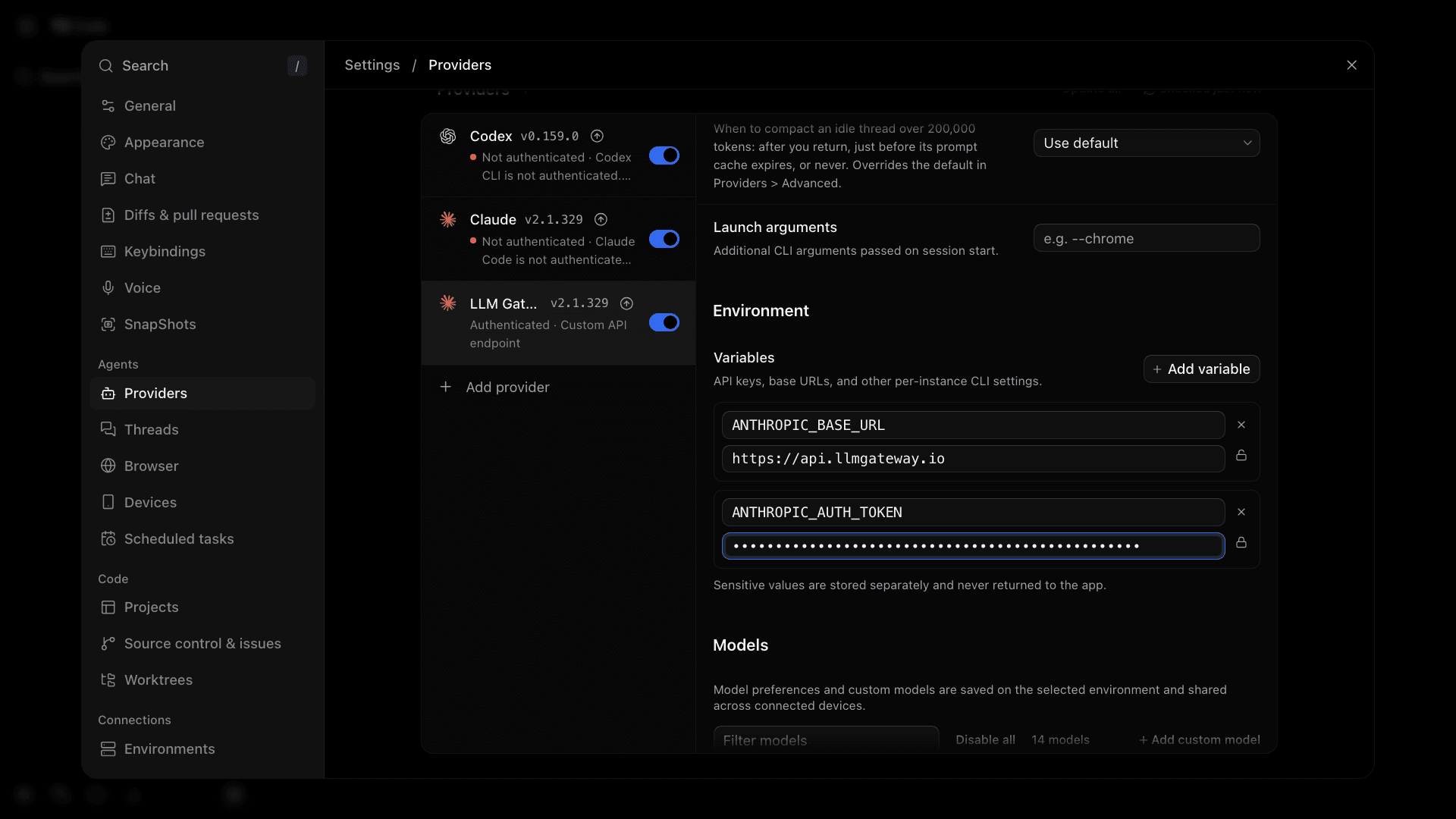
If your shell profile exports ANTHROPIC_API_KEY, also add that variable with an empty value. T3 Code's router setup uses this to stop an existing key from overriding the gateway token.
Choose a model
Most of T3 Code's built-in Claude models use the same IDs as the LLM Gateway catalogue, so they route through the gateway without further setup.
For any other model, or a built-in one the gateway rejects as unsupported, scroll to Models in the same instance, click Add custom model, and enter the exact ID from the models page, for example glm-5.2. Choose a model with tool support. Custom models can show fewer reasoning controls than the built-in ones.
In a thread, open the model picker in the composer and select a model listed under your LLM Gateway instance.
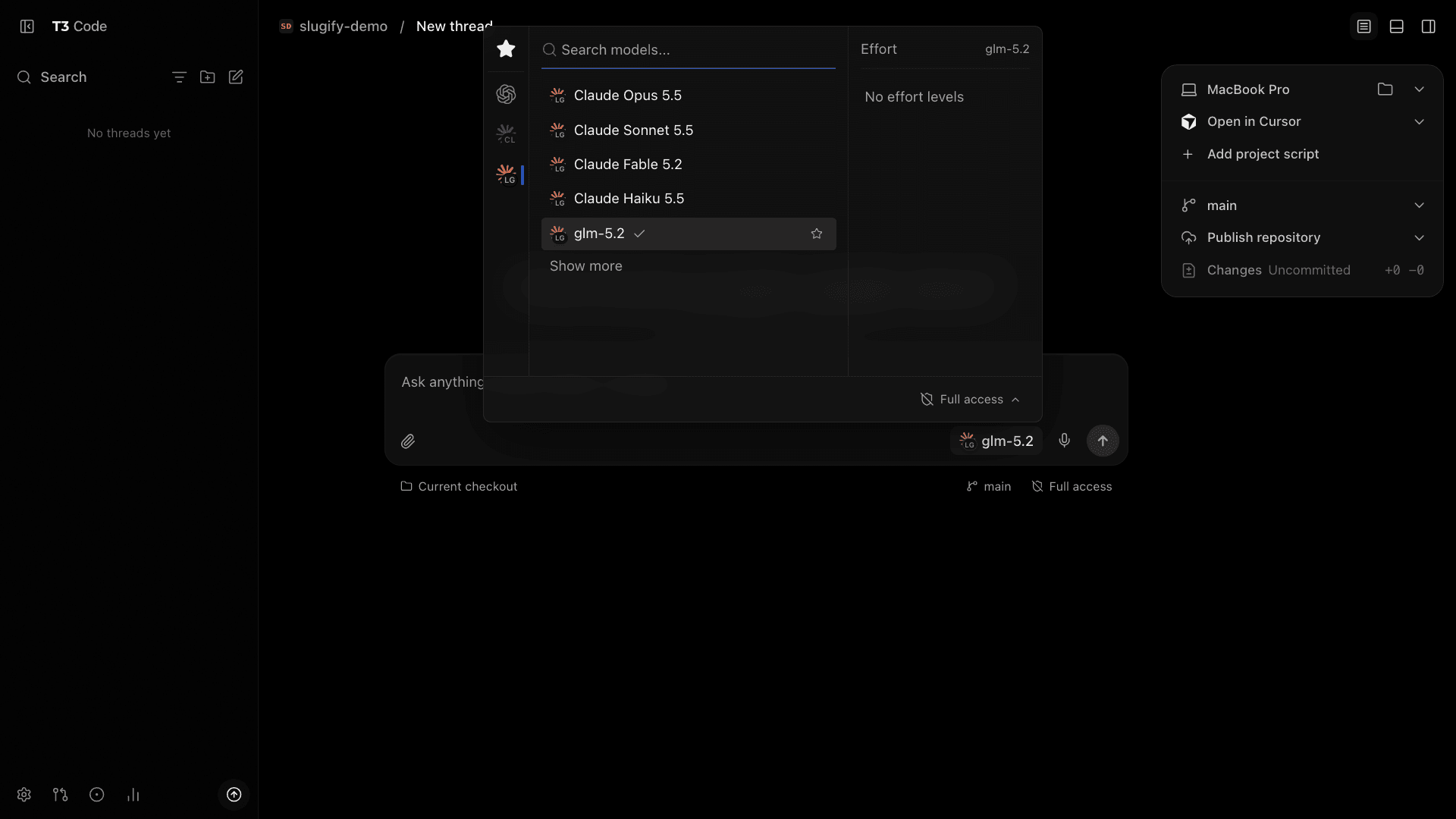
Using DevPass? Use a canonical model ID without an upstream provider prefix, and choose a model included in your plan. The gateway selects the serving provider for coding plans.
Try a coding task
Click Add project, choose Local folder, and select your repository. Then ask for a specific fix and a way to check it:
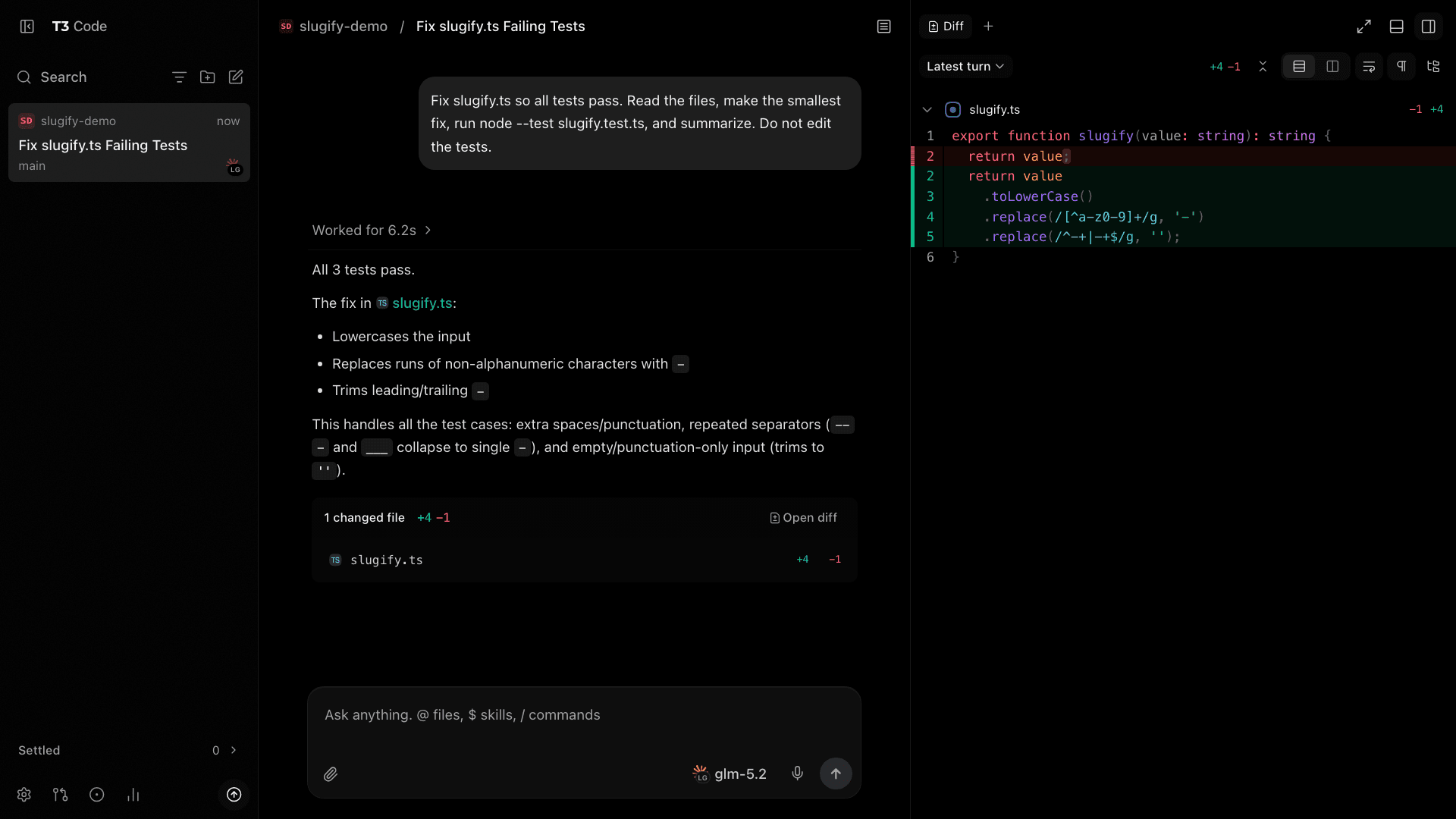
1Fix slugify.ts so all tests pass. Read the files, make the smallest fix,2run node --test slugify.test.ts, and summarize. Do not edit the tests.1Fix slugify.ts so all tests pass. Read the files, make the smallest fix,2run node --test slugify.test.ts, and summarize. Do not edit the tests.New threads start in Full access, which runs commands and edits without prompts. Switch the thread to Supervised in the composer to approve each command and file change.
When the turn finishes, click Open diff to review the change before you commit it. Then check the request's model, tokens, and cost in your LLM Gateway dashboard.
Use Codex or OpenCode instead
T3 Code passes an instance's environment variables to Codex and OpenCode in the same way. We ran the task above through both, with Codex CLI 0.159.0 and OpenCode 1.18.29.
- OpenCode: add an OpenCode provider and set
LLMGATEWAY_API_KEYin its Environment variables. Gateway models then appear in the model picker. The OpenCode guide covers its own configuration. - Codex: add a Codex provider with Configure manually, and point the
CODEX_HOMEpath at a directory whoseconfig.tomlcontains the provider block from the Codex CLI guide. Then setLLMGATEWAY_API_KEYin the instance's Environment variables.
Troubleshooting
The instance shows Not authenticated
Check that both variables are saved: a saved sensitive value reads Stored secret. Confirm that the base URL has no /v1 suffix, then click Refresh provider status.
Requests still use your Anthropic account
The thread is running on the default Claude instance. Open the model picker and select a model under LLM Gateway.
Model not found
Copy the exact ID from the models page into Add custom model. On DevPass, remove any upstream provider prefix.
The agent stops early or prints raw tool-call text
Claude Code depends on reliable tool calls. Switch the thread to another tool-capable model from the catalogue.
Codex reports a missing environment variable
A Codex session that started before you saved LLMGATEWAY_API_KEY keeps its old environment. Restart T3 Code, then start a new thread.